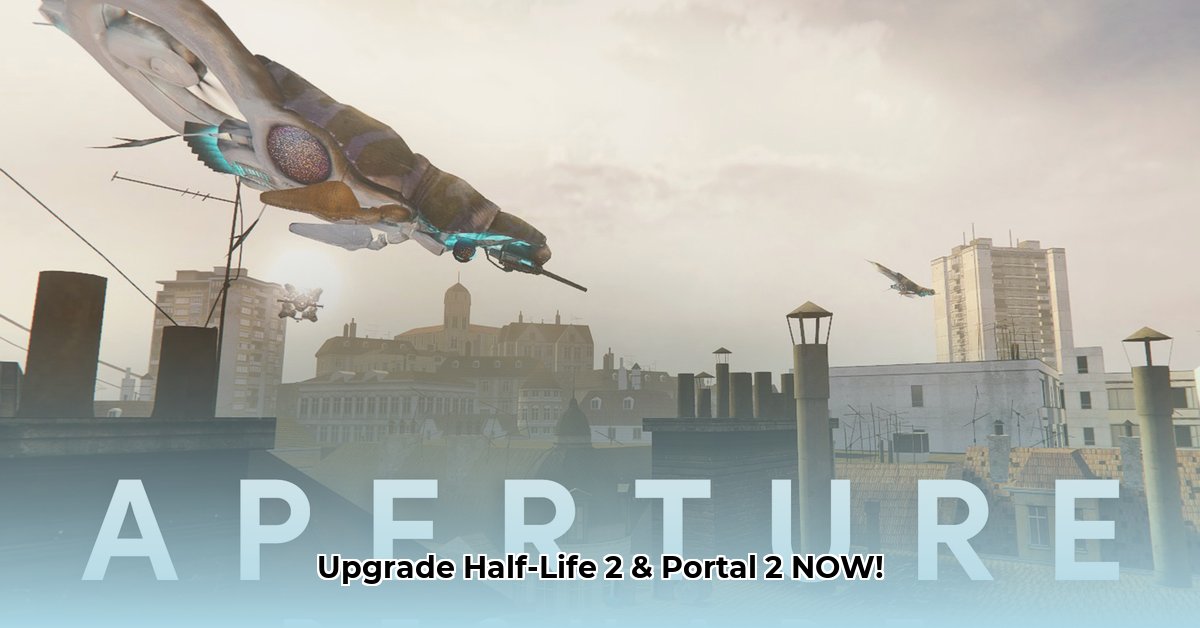
Want to revitalize your Half-Life 2 and Portal 2 experience with stunning visual enhancements? Aperture Reshade offers a simple yet powerful way to dramatically improve the graphics of these classic Valve titles. This guide provides a comprehensive, step-by-step walkthrough for installing and configuring Reshade for both games, complete with troubleshooting tips to ensure a smooth and visually rewarding experience.
Before You Begin: System Requirements and Prerequisites
Before embarking on this visual upgrade, ensure you meet the following requirements:
- Games: Half-Life 2 or Portal 2 (Steam versions recommended).
- Graphics Card: A relatively modern graphics card is recommended for optimal performance. Older cards may experience performance issues with more demanding settings.
- Graphics Drivers: Up-to-date graphics drivers (Nvidia, AMD, or Intel) are crucial for stability and compatibility. Download the latest drivers from the manufacturer's website.
- Reshade Installer: Download the latest Reshade installer from the official website: https://reshade.me/.
- Aperture Reshade Preset: Download a pre-configured preset designed for Half-Life 2 and/or Portal 2 from reputable modding communities. (A quick online search will reveal many options).
Installing Aperture Reshade for Half-Life 2: A Step-by-Step Guide
Follow these instructions to install Aperture Reshade for Half-Life 2:
Locate the Game Executable: Find the
hl2.exefile within your Half-Life 2 game directory (usually located in your Steam library underSteam\steamapps\common\half-life 2\bin).Run the Reshade Installer: Run the downloaded Reshade installer. When prompted, select
hl2.exeas the target executable.Select DirectX Version: Choose DirectX 9 as the target API. Half-Life 2 primarily utilizes DirectX 9. Selecting the incorrect version is a common source of installation errors.
Choose Shaders: The installer will provide a list of available shaders. Select the shaders you wish to include in your installation; a full installation may result in slightly lower performance.
Download and Install the Preset: Download the Aperture Reshade preset for Half-Life 2. Extract the contents of the downloaded archive. Place the contents (usually including an
Aperture.inifile and shader files) into thehl2.exedirectory.Launch Half-Life 2: Launch Half-Life 2. The Reshade interface should appear, usually accessible by pressing Home or Shift + F2. Experiment with both key combinations if necessary.
Configure Settings: Use the Reshade interface to adjust various visual settings (brightness, contrast, sharpness, etc.) to your liking. Many presets include advanced options for fine-tuning
Installing Aperture Reshade for Portal 2: A Similar Process
The installation for Portal 2 mirrors the Half-Life 2 process with minor differences:
Locate the Game Executable: Find the
portal2.exefile in your Portal 2 game directory (usually in your Steam library).Run the Reshade Installer: Similar to above, use the installer, targeting
portal2.exe.Select DirectX Version: Again, select DirectX 9.
Choose Shaders: Choose the desired shaders. A smaller set of shaders might result in improved performance, especially on older hardware.
Install the Portal 2 Preset: Download and extract the Portal 2-specific Aperture Reshade preset. Place the files in the
portal2.exedirectory.Launch Portal 2 and Configure: Launch Portal 2. The Reshade interface will appear (Home or Shift + F2). Adjust settings as desired.
Troubleshooting Common Issues
Encountering problems? Here are some of the most common issues and their solutions:
- Reshade Not Loading: Ensure you selected the correct executable during installation and the preset files are correctly placed in the game's directory.
- Visual Glitches or Crashes: Outdated drivers are a common culprit. Update your graphics drivers. Using an incorrect DirectX version during installation can also cause issues.
- Performance Issues (Low FPS): Reduce the number of active shaders or lower in-game resolution. More demanding shaders require more processing power.
Fine-Tuning Your Visuals: Exploring Reshade's Options
Aperture Reshade provides extensive customization. Explore settings like:
- Brightness/Contrast: Adjust overall brightness and contrast for optimal image clarity.
- Sharpness: Enhance detail, but be mindful of potential artifacts at high settings.
- Color Grading: Modify color saturation and tone for a personalized visual style.
- Ambient Occlusion: Simulate shadows for improved realism and depth. This may impact performance more significantly than other options.
Conclusion: Elevate Your Gaming Experience
By following these steps, you can significantly enhance the visual fidelity of Half-Life 2 and Portal 2. Remember to consult online resources for more advanced configuration options and troubleshooting solutions. Enjoy your visually enhanced gaming experience!
⭐⭐⭐⭐☆ (4.8)
Download via Link 1
Download via Link 2
Last updated: Tuesday, April 29, 2025